Showing posts with label pixma. Show all posts
Showing posts with label pixma. Show all posts
Thursday, February 28, 2013
Printer Service Manual PIXMA iP6600D
This manual has been issued by Canon Inc. to provide the service technicians of this product with the information necessary for qualified persons to learn technical theory, maintenance, and repair of products. This manual covers information applicable in all localities where this product is sold. For this reason, this manual may contain information that is not applicable to your locality.
Manual Outline
This service manual consists of the following three parts to provide information necessary to service the PIXMA iP6600D:
Part 1: Maintenance
Information on maintenance and troubleshooting of the PIXMA iP6600D
Part 2: Technical Reference
New technology and technical information such as FAQs (Frequently Asked Questions) of the PIXMA iP6600D
Part 3: Appendix
Block diagrams and pin layouts of the PIXMA iP6600D
Reference:
This manual does not provide sufficient information for disassembly and reassembly procedures. Refer to the graphics in the separate Parts Catalog.
download here
ReadMore
Manual Outline
This service manual consists of the following three parts to provide information necessary to service the PIXMA iP6600D:
Part 1: Maintenance
Information on maintenance and troubleshooting of the PIXMA iP6600D
Part 2: Technical Reference
New technology and technical information such as FAQs (Frequently Asked Questions) of the PIXMA iP6600D
Part 3: Appendix
Block diagrams and pin layouts of the PIXMA iP6600D
Reference:
This manual does not provide sufficient information for disassembly and reassembly procedures. Refer to the graphics in the separate Parts Catalog.
download here

Monday, February 25, 2013
Resetting Waste Ink Counter Printer Canon Pixma iP 1880
There are some ways to reset waste ink counter in the Canon Pixma iP 1880. Waste Ink counter have full at Canon Pixma iP 1880 marked with The POWER and ALARM lamps flash alternately. If waste Ink have full the printer cannot be used. So, the printer will be able to be used again after reset. You are can use software resetter like GeneralTool or iPTool to reset Canon Pixma iP 1880, you can also do reset manual. Following its way to reset Canon Pixma iP 1880 :
A. Reset Manual.
On reset manual, sometime printer return blinking after turn on again. For reset manual following its way :
* Turn the printer on
* Press and hold Resume button for 1-2 minutes
* Open the printer cover
* Release the catridge and then put catridge again
* Close The Cover
* Turn Off then Turn On again.
B. Using GeneralTool for canon pixma ip 1800 series
Before using GeneralTool for canon pixma ip 1800, printer driver should have been install correcly in the computer.
Using GeneralTool iP 1800...? why do not use GeneralTool iP 1880. Canon Pixma iP 1880 is canon iP 1800 series. Follow this intruction to reset the printer :
* Download software resetter for canon pixma iP1880 from Here
* Before connecting printer to the power suply, press and hold power button then connecting the printer to the power.
* dsacme.blogspot.com
* While hold the power button press reject button for 2 times then release power button.
* Run general tool for canon iP 1880. After the printer know, Click lock release button. ( note : to view locK release menu, min resolution 1024 x 728).
* Then select Set Destination to iP1800 (my canon iP 1880 printer is iP1800ASA)
* Click MAIN and PLATEN button to reset waste ink counter to zero.
* Finally test print by click TEST PATTERN button.
C. Using iPTool software
This is software from Rusia for canon iP series. Using this software give separate experience. this software detect automatically attached printer in the computer. following way reset to use iPTool software :
* Download and ektrak iPtool software, you can download the software from this url :
* Turn on the printer
* Then run iptool software, the software will detect the printer automatically.
* To reset waste ink counter to zero click “Reset Main” and “Reset Platen” button.
* To view the result do test print.
ReadMore
A. Reset Manual.
On reset manual, sometime printer return blinking after turn on again. For reset manual following its way :
* Turn the printer on
* Press and hold Resume button for 1-2 minutes
* Open the printer cover
* Release the catridge and then put catridge again
* Close The Cover
* Turn Off then Turn On again.
B. Using GeneralTool for canon pixma ip 1800 series
Before using GeneralTool for canon pixma ip 1800, printer driver should have been install correcly in the computer.
Using GeneralTool iP 1800...? why do not use GeneralTool iP 1880. Canon Pixma iP 1880 is canon iP 1800 series. Follow this intruction to reset the printer :
* Download software resetter for canon pixma iP1880 from Here
* Before connecting printer to the power suply, press and hold power button then connecting the printer to the power.
* dsacme.blogspot.com
* While hold the power button press reject button for 2 times then release power button.
* Run general tool for canon iP 1880. After the printer know, Click lock release button. ( note : to view locK release menu, min resolution 1024 x 728).
* Then select Set Destination to iP1800 (my canon iP 1880 printer is iP1800ASA)
* Click MAIN and PLATEN button to reset waste ink counter to zero.
* Finally test print by click TEST PATTERN button.
C. Using iPTool software
This is software from Rusia for canon iP series. Using this software give separate experience. this software detect automatically attached printer in the computer. following way reset to use iPTool software :
* Download and ektrak iPtool software, you can download the software from this url :
* Turn on the printer
* Then run iptool software, the software will detect the printer automatically.
* To reset waste ink counter to zero click “Reset Main” and “Reset Platen” button.
* To view the result do test print.
Tuesday, February 19, 2013
Canon PIXMA MP800 Error 6A00
You can make an attempt to free the printhead by doing the following;
1. With the power off, open the top cover.
2. Turn the power on and as the unit attempts to perform the initial test cycle, gently pull on the carriage assembly to see if it will move to the left. If you get no response. Turn the power off.
3. Now, turn the power on and gentley push on the carriage assembly to the right in an attempt to take the pressure of the of carriage and free the jam.
If neither of these work, then you are left with no other choice than to take the printer apart and get at the locking mechanism and free the carriage so it can move away fromt he purge unit and help you to locate the probable jam in the purge unit.
ReadMore
1. With the power off, open the top cover.
2. Turn the power on and as the unit attempts to perform the initial test cycle, gently pull on the carriage assembly to see if it will move to the left. If you get no response. Turn the power off.
3. Now, turn the power on and gentley push on the carriage assembly to the right in an attempt to take the pressure of the of carriage and free the jam.
If neither of these work, then you are left with no other choice than to take the printer apart and get at the locking mechanism and free the carriage so it can move away fromt he purge unit and help you to locate the probable jam in the purge unit.
Monday, February 18, 2013
How to Reset Canon Pixma iP6000 iP8500
Manual Reset for Canon Pixma iP 6000, iP 8500
ReadMore
- Turn off the printer.
- Hold Resume button click POWER.
- Hold button RESUME release POWER.
- Then press the button RESUME again .
- Release all the buttons.
- Led Indicator in green and stay green.
- Click RESUME button 4 times , if you want to make another transaction. Look at the table below :
- Orange – Service test print 1 times – Orange – Service test print
- Green – EEPROM information print 2 times – Green – EEPROM information print
- Orange – EEPROM initialization 3 times – Orange – EEPROM initialization
- Green – Waste ink counter setting 4 time – Green – Waste ink counter setting
- Orange – Destination setting (Press Power > Press Resume 3x) 5 times – Orange – Destination setting (Press Power> Press Resume 3x)
- Green – Print head deep cleaning 6 times – Green – Print head deep cleaning
- Orange, Green, Orange – Return to menu selection 11-13 times – Orange, Green, Orange – Return to menu selection
- Green – Left margin correction 14 times – Green – Left margin correction
- Turn off the printer POWER button.
Sunday, February 17, 2013
How to Reset Canon Pixma MP520
Reset procedure for Canon Pixma MP520, posting by BilBg (bulgaria) in fixyourownprinter forum, procedure for resetting the Canon Pixma MP520 with button combinations. Some users in this forum which have tried this method (canon MP520 reset methode) say this method work on Canon MP520.
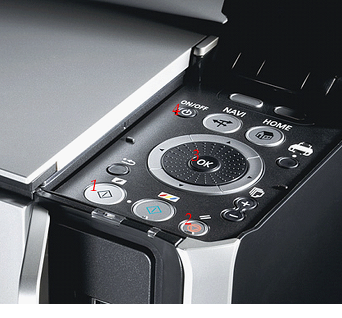
Here Procedure Resetting Canon Pixma MP520 (Picture by BilBg):
ReadMore
Here Procedure Resetting Canon Pixma MP520 (Picture by BilBg):

- Switch the printer OFF
- Press buttons 1 + 2 + 3 and 4 (simultaneously using four fingers)
- Keep pressing this four buttons for 10 seconds
- Release the On/Off button (number 4) (Keeping pressing the others)
- After a few seconds (when the printer go ON) you can release buttons 1, 2, 3
- Maybe step “c)” is not needed
- This procedure was used when I refilled the Black cartridge – try using the ColorCopy button instead of BlackCopy button (number 1) if you refill Color cartridge.Maybe there is no need for all the four buttons – you can try 1 + 4, 2 + 4 or 3 + 4. (or 1+2+4, 1+3+4, 2+3+4)
Error Code 6A00 Canon Pixma iP4300
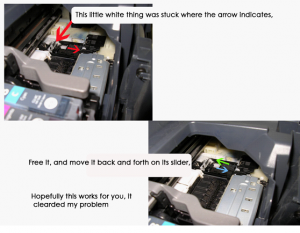 Root Ravine Pixma IP4300 Incorrectness 6A00, the tips from someone in printer installation allow with represent. Solotion failure 6A00 grow intructions in the show.
This methode also activity in Canon iP4200 and some individual says can be misused in Canon MP800(Absolute see image permit with descriptions)
Thursday, February 7, 2013
How to Reset Printer Canon Pixma MP450
Here manual reset procedure for Printer Canon Pixma MP450 :
ReadMore
- Turn off the Printers .
- Hold button Resume/Cancel (red triangle in the circle), click on POWER – an indicator light green.
- Release the button Resume / Cancel keeping POWER.
- Click Resume/Cancel 2 times, keeping POWER, and then release all the buttons.
- When the indicator recorded GREEN – click Resume / Cancel 4 times!
- Turn off the Canon Pixma MP450 Printers POWER button.
Subscribe to:
Posts (Atom)