Tuesday, March 5, 2013
resetter for Canon MP198, MP258, MP276, MP496, MP558, MP568
To everyone who required resetter for Canon MP198, MP258, MP276, MP496, MP558, MP568, and MP648 to reset ink counter on these canon printer model, I found how to reset these canon printers model on PrinterExperts.Blogspot.com. Canon MP198, MP258, MP276, MP496, MP558, MP568, and MP648 is canon all in one printer verison that designed for home and small office.
I don’t know this reset method work or not on canon MP198, MP258, MP276, MP496, MP558, MP568, and MP648 because I don’t have this printer model to try this reset method.
Ready to reset your printer, follow the following steps:
All these steps must be done to reset your Canon MP198, MP258, MP276, MP496, MP558, MP568, and MP648 printer.
A. Entering into service mode
B. Resetting Ink counter on the Printer

ReadMore
I don’t know this reset method work or not on canon MP198, MP258, MP276, MP496, MP558, MP568, and MP648 because I don’t have this printer model to try this reset method.
Ready to reset your printer, follow the following steps:
All these steps must be done to reset your Canon MP198, MP258, MP276, MP496, MP558, MP568, and MP648 printer.
A. Entering into service mode
- Turn off the printer off is the printer power on. And remove the printer USB cable from your computer..
- While the printer is OFF, press and hold the Start/Stop button on
the some other canon printers model press Resume/Cancel button. - While still holding Start/Stop button or Resume/Cancel button, press and hold the POWER button.
- When the POWER LED (green light) lit, release the Start/Stop or resume/cancel button (still holding the POWER button).
- Still holding the power button, Press the Start/Stop button or
resume/cancel button TWICE then Release the POWER button. Wait until LCD
printer to display 0 (zero) number - After the display is 0, attach the printer UDB cable to your
computer, its will detected new device installed (its normal), now go to
resetting steps
B. Resetting Ink counter on the Printer
- Run “service_tool 1050.exe”. you can download the service tool software from this link: ServiceTool_1050.zip
- service tool 1050
- Confirm detected USB-port numbers on USB port column.
- Click “Main button” on Clear ink counter section. Make sure there
are papers in the paper feed because the printer will print after the
process is complete. - Click “platen button” on the “Clear ink counter” section. The printer will print again.
- Turn off the printer and then turn the printer on. You printer is ready for use.

Monday, March 4, 2013
reset a hp ink cartridge after refilling
Go to the following website and download the freeware InkMonitor 2.1.2: http://www.pokluda.cz/.
You have to add data about new cartridge. HP60 cartridge information =
200 pages per cartridge. This works great for me. It gives you a history
of everything printed. This way you can gauge when its time to refill
your cartridges. You must refill before they run out of ink or you will
burn out the print heads and have to replace them.
The
newer Hewlett Packard printers have included in the software that comes
with their printers, a "toolbox" that includes a section called
Estimated Ink Level. Its a great tool that allows you to keep track of
how much ink is left in your cartridges so you don't start a big print
job and get stranded out of ink in the middle of it. The only problem is
that has become quite troublesome on those who wish to refill their
cartridges. If you refill your cartridge or have someone else refill
your cartridge, it will read as low or empty when you try to print with
the cartridge.
How does HP do it? They started embedding a serial number
in the contact strip located on the back of the cartridge. The printer
remembers that serial number and gives the message of low or out of ink.
The internal memory is located in the printers firmware and is not in
the software. It will remember the previous two cartridges ink level. We
have posted various ways to reset the ink levels so your Estimated Ink
Level will read full again. Click on your printer cartridge number below
to find out how.
ReadMore
You have to add data about new cartridge. HP60 cartridge information =
200 pages per cartridge. This works great for me. It gives you a history
of everything printed. This way you can gauge when its time to refill
your cartridges. You must refill before they run out of ink or you will
burn out the print heads and have to replace them.
The
newer Hewlett Packard printers have included in the software that comes
with their printers, a "toolbox" that includes a section called
Estimated Ink Level. Its a great tool that allows you to keep track of
how much ink is left in your cartridges so you don't start a big print
job and get stranded out of ink in the middle of it. The only problem is
that has become quite troublesome on those who wish to refill their
cartridges. If you refill your cartridge or have someone else refill
your cartridge, it will read as low or empty when you try to print with
the cartridge.
How does HP do it? They started embedding a serial number
in the contact strip located on the back of the cartridge. The printer
remembers that serial number and gives the message of low or out of ink.
The internal memory is located in the printers firmware and is not in
the software. It will remember the previous two cartridges ink level. We
have posted various ways to reset the ink levels so your Estimated Ink
Level will read full again. Click on your printer cartridge number below
to find out how.
Could appears on HP DesignJets 800 Series, DesignJet 500 and 510.
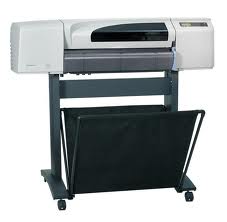
Printer show a System Error: 61:05
The problem:
That's an error Processing Job.
This Error Code appears in these HP DesignJets with an HPGL/ 2 card
installed, when processing either a PostScript or HP-GL/2 file.
Solution 1:
- Switch the Printer Off
- Wait a few minutes.
- Switch the Printer On
- Resend the file that you were trying to print.
Solution 2:
- If the Error Code reappears, try to generate the file again and try to print again.
- If the file that is causing this error is PostScript, check if it is
Binary. If the file is Binary, use AppleTalk to send the file to the
Printer. - If AppleTalk is not being used to send the Binary file to the
Printer, you have to change the PostScript settings to Binary through
the Front Panel (Set-up menu / PS settings / Encoding / Binary).
Solution 3:
- If the Error Code continues to reappear, check for a new release of the Driver: http://www8.hp.com/us/en/support-drivers.html
Resetter Printer Epson L100 dan L200

Printer L100 and L200 are not the same as other printer types, where if you type another printer itself must be modified first by installing a drip tube in the outer regions printer I may say very at risk at all if you are not careful when installing and using it, which of course is very different from the second type of printer that has been designed and manufactured by the factory such that both direct Epson cartridge equal and IV tanks. So what if I buy one of these printers already were really safe from the damage that his name at any time? What if I buy a printer L100 or L200 no more bother researching such as the type and the other Epson models. the answer is to be researched as well as the other Epson printers as if had reached the maturity that has been determined by the provider of Epson.
Download : Program Resetter Epson Stylus Photo L100 and L200
Download : Driver Printer Epson L100
Download : Driver Printer Epson L200
Download : Driver Scanner L200
The following description as well as tutorials and researching ways Printers Epson L100 and L200 with Software Resetter Epson official from the factory through a bit of writing and drawing or image.
- Turn the printer and connect the USB cable on your computer
- Double-click your AdjProg successful crack download
- Then do as the tutorial image below


4. Then the last turn off the printer and then revived.
5. Completed, and your printer is ready to operate again.
130 Roll loading instructions Hp designjet 130
A FLASHING roll symbol means the roll is empty or a paper jam.
130 Roll loading instructions…
This section is only relevant if your printer has a roll feed installed.
Only one source of paper can be used by the printer at any one time, so if a
roll of paper is loaded and the software requests printing on a sheet
of paper:
• If you have a manual roll feed installed on your printer, you must unload the
roll manually before you can print to a sheet of paper.
• If you have the Automatic Roll Feed installed on your printer, the roll is
automatically unloaded by the printer.
In any case, the roll is automatically reloaded the next time printing to the roll is
requested.
You can cut a roll without unloading it by pressing the OK key (top right key on
the front panel); the paper first advances about 1 cm or 0.4 inch.
1. Set your application to pick paper from the roll feed (only applicable with
the manual roll feed).
2. Select Print from your application.
3. Load a roll of the required paper onto the spindle. Ensure that the roll is the
right way round with the surface on which you wish to print facing up and
that the blue stop on the spindle is pushed in against the paper.
4. Insert the spindle into its retaining slots, with the blue stop on the right and
the black stop on the left as seen from the rear of the printer.
If the paper is glossy, we recommend that you wear gloves to avoid
smearing the surface of the paper.
5. Make sure that the leading edge of the roll is straight and perpendicular to
its side edges and has no irregularities.
6. Rewind any excess paper so that the paper is rolled tightly onto the spindle.
7. Insert the leading edge of the paper into the lower slot in the rear of the
printer. Push the paper in until it encounters resistance, keeping the sides of
the paper rolled tightly so that the paper is aligned properly. After emitting a
‘beep’, the printer will take up the paper.
The printer will check the alignment of the paper.If the paper is
properly aligned, the roll icon will appear on the display,
indicating that the printer is ready to print.
If the paper is misaligned, the printer will eject the paper and the
display will show the misaligned and roll icons; you will have to
reload the paper.
8. Repeat Step 6, so that the paper is tightly rolled onto the spindle.
Sheet paper
Roll paper
ReadMore
130 Roll loading instructions…
This section is only relevant if your printer has a roll feed installed.
Only one source of paper can be used by the printer at any one time, so if a
roll of paper is loaded and the software requests printing on a sheet
of paper:
• If you have a manual roll feed installed on your printer, you must unload the
roll manually before you can print to a sheet of paper.
• If you have the Automatic Roll Feed installed on your printer, the roll is
automatically unloaded by the printer.
In any case, the roll is automatically reloaded the next time printing to the roll is
requested.
You can cut a roll without unloading it by pressing the OK key (top right key on
the front panel); the paper first advances about 1 cm or 0.4 inch.
1. Set your application to pick paper from the roll feed (only applicable with
the manual roll feed).
2. Select Print from your application.
3. Load a roll of the required paper onto the spindle. Ensure that the roll is the
right way round with the surface on which you wish to print facing up and
that the blue stop on the spindle is pushed in against the paper.
4. Insert the spindle into its retaining slots, with the blue stop on the right and
the black stop on the left as seen from the rear of the printer.
If the paper is glossy, we recommend that you wear gloves to avoid
smearing the surface of the paper.
5. Make sure that the leading edge of the roll is straight and perpendicular to
its side edges and has no irregularities.
6. Rewind any excess paper so that the paper is rolled tightly onto the spindle.
7. Insert the leading edge of the paper into the lower slot in the rear of the
printer. Push the paper in until it encounters resistance, keeping the sides of
the paper rolled tightly so that the paper is aligned properly. After emitting a
‘beep’, the printer will take up the paper.
The printer will check the alignment of the paper.If the paper is
properly aligned, the roll icon will appear on the display,
indicating that the printer is ready to print.
If the paper is misaligned, the printer will eject the paper and the
display will show the misaligned and roll icons; you will have to
reload the paper.
8. Repeat Step 6, so that the paper is tightly rolled onto the spindle.
Sheet paper
Roll paper
Resolve The Error 912 - The computer has been removed in the HP Compaq dx2700 MT
On the Desktop computer HP Compaq dx 2700, after opening the cover of
CPU case (altough it has been closed back again), when starting the
computer, there will be the alarm tone sound is quite disturbing.
And we must press the F1 key to continue loading the OS (Operating
System). And this will continue on every time the computer is restarted.

The warning is : error 912 - The computer has been removed. The machinecover has been removed
since last system start up. please Ensure That any system access wasauthorized.
To solve this problem:
• Turn the computer on
• Press F10 to enter the BIOS setup, wait for about 10 seconds
• Find the Hardware Monitor Setup menu (use arrow keys), select then press enter
• On Reset Case Open Status, change value from Disable to Enable (use + on the numeric pad on the right side of the keyboard to change the value)

• Press F10 to save the configuration, press Enter.
source h0w2.blogspot.com
ReadMore
CPU case (altough it has been closed back again), when starting the
computer, there will be the alarm tone sound is quite disturbing.
And we must press the F1 key to continue loading the OS (Operating
System). And this will continue on every time the computer is restarted.
The warning is : error 912 - The computer has been removed. The machinecover has been removed
since last system start up. please Ensure That any system access wasauthorized.
To solve this problem:
• Turn the computer on
• Press F10 to enter the BIOS setup, wait for about 10 seconds
• Find the Hardware Monitor Setup menu (use arrow keys), select then press enter
• On Reset Case Open Status, change value from Disable to Enable (use + on the numeric pad on the right side of the keyboard to change the value)
• Press F10 to save the configuration, press Enter.
source h0w2.blogspot.com
Saturday, March 2, 2013
Resetter Canon iP2770 v1074
If you do not have a try Download Resetter Canon iP2770 v1074 are widely spread on the internet
First into Service Mode iP2770:
1. The printer is turned off and the power cord.
2. Press the RESUME button two seconds
then press the POWER button until the green light flash (when pressing the POWER button, ... RESUME button jgn removed first)
3. Then release the Resume button, but do not release the button POWER.
4. While the POWER button is still depressed, press the Resume button 5 times. Led will flash alternately orange last green with orange flames. (not to be mistaken 4x because the printer will die in total, but it is temporary too) Then ...
5. Release both buttons simultaneously.
6. Led will blink for a while then it will flash GREEN.
7. The computer will detect the new device, ignore it .....
8. This situation shows iP2770 printer in a state of SERVICE MODE and ready to reset.
Then run Resetter iP2770 v1074 it:
1. File Exctract Resetter iP2770.
2. Prepare 2 paper in the printer (to print at the time of the reset process).
3. Run the program Resetter iP2770
4. Click "PLAY", then the printer will proceed, then the iP2770 will print a page with the words "D = 000.0"
5. Click "EEPROM Clear".
6. Then click "EEPROM", and the printer will print the results Resetter iP2770. One line in his writings as follows:
"TPage (TTL = 00000)"
7. Turn off the printer by pressing the POWER button.
8. Done
ReadMore
First into Service Mode iP2770:
1. The printer is turned off and the power cord.
2. Press the RESUME button two seconds
then press the POWER button until the green light flash (when pressing the POWER button, ... RESUME button jgn removed first)
3. Then release the Resume button, but do not release the button POWER.
4. While the POWER button is still depressed, press the Resume button 5 times. Led will flash alternately orange last green with orange flames. (not to be mistaken 4x because the printer will die in total, but it is temporary too) Then ...
5. Release both buttons simultaneously.
6. Led will blink for a while then it will flash GREEN.
7. The computer will detect the new device, ignore it .....
8. This situation shows iP2770 printer in a state of SERVICE MODE and ready to reset.
Then run Resetter iP2770 v1074 it:
1. File Exctract Resetter iP2770.
2. Prepare 2 paper in the printer (to print at the time of the reset process).
3. Run the program Resetter iP2770
4. Click "PLAY", then the printer will proceed, then the iP2770 will print a page with the words "D = 000.0"
5. Click "EEPROM Clear".
6. Then click "EEPROM", and the printer will print the results Resetter iP2770. One line in his writings as follows:
"TPage (TTL = 00000)"
7. Turn off the printer by pressing the POWER button.
8. Done
Subscribe to:
Posts (Atom)